How to Geotag Photos Without a GPS Tracker
The short answer
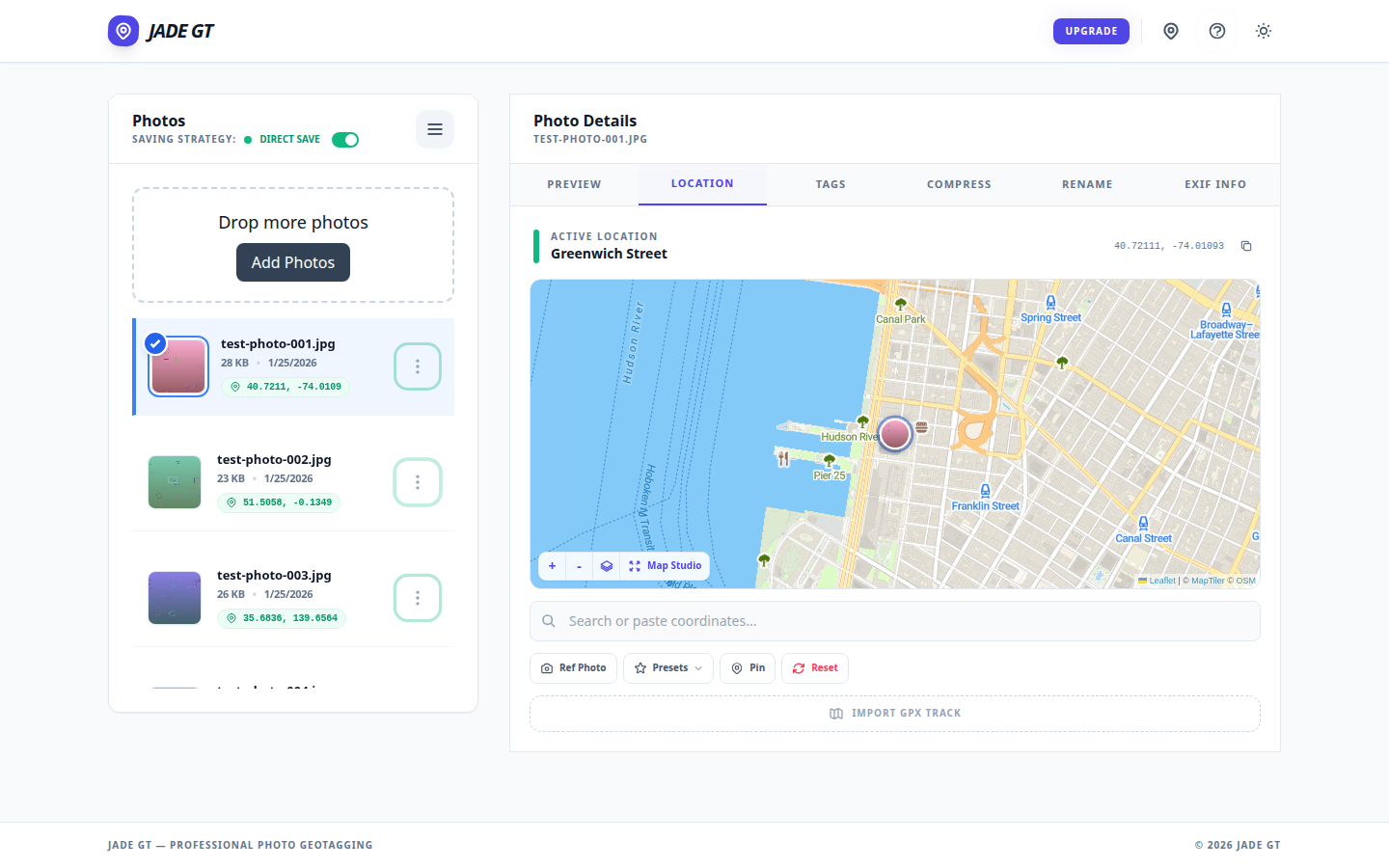
If you do not own a GPS puck, can you still geotag? Yes. For a single-venue wedding or studio session, drop one pin and apply it to every photo. For destination, travel, or outdoor work, record a GPX track on your phone and let Jade GT match each frame by timestamp. No tracker. No upload. No Lightroom Map module bug.
You unloaded the cards from the destination wedding in Sedona last night. Two photographers, three bodies, roughly 2,400 frames between them. The couple wants the gallery sorted by location. Sedona chapel, then Cathedral Rock, then the resort cocktail hour. Every photo needs to know where it was taken so the search box and the printed-album metadata both work later.
You do not own a Garmin handheld. You did not buy the Solmeta hot-shoe puck. Your Canon R5 talks to your phone over Bluetooth, sometimes, when the phone is awake, which it was not for most of the day. The EXIF for all 2,400 frames currently says "no location."
I do not carry a GPS tracker, can I still geotag? Yes. There are two reliable paths and one Lightroom workaround. None of them require new hardware.
A note on terminology before we start. "Geotagging" means writing a latitude and longitude into a photo's EXIF block, the same field every catalog tool reads. It does not mean uploading the photo anywhere. Done locally, geotagging is typing a number into a metadata field, the way you type a copyright string. The phone, the camera, the GPX file: they are all just sources for that number.
Do you need a GPS tracker to geotag photos?
A coordinate is the requirement. The tracker is one way to produce a coordinate. The other ways are a venue pin you drop yourself, or a GPX file from any phone app you already have installed.
Photography sites have spent a decade reviewing trackers. Have Camera Will Travel still maintains a roundup of Garmin handhelds, Solmeta hot-shoe units, and Garmin Fenix watches that auto-export tracks. They are good devices. They are not what most working wedding and portrait pros actually use, and they do not need to be.
Three paths, picked by what you shot, not what you own:
| Shoot type | Best path | What you need | How long |
|---|---|---|---|
| Single venue (wedding, studio, session) | Pin-drop in the Location tab | Just the venue address | ~30 seconds for 2,000 photos |
| Travel, hike, multi-location day | GPX track matched to photo timestamps | Phone running a GPS app, camera clock synced | One pass after the shoot |
| Already in Lightroom with a broken Map module | Pin-drop in the browser, then re-import | Browser + folder access | Same as above |
The walkthrough for each path is below.
Path 1: single-venue shoot, drop one pin
This is the wedding case. The studio case. The headshot session, the engagement shoot, the in-home maternity session. Every frame on the card was taken within walking distance of one address.
Two tools, same gesture:
- Drop the folder onto the page.
- Open the Location tab.
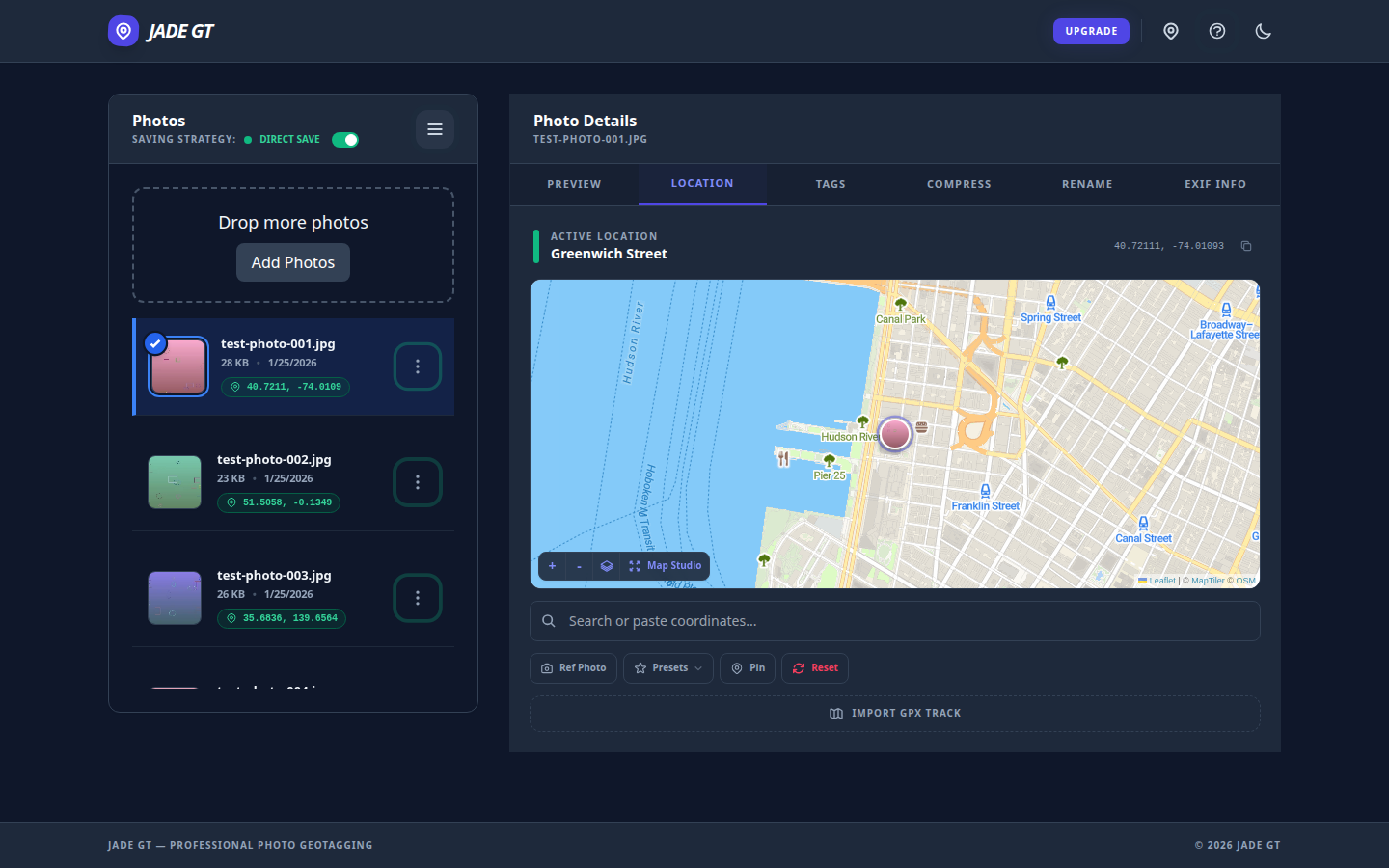
- Type the venue name into the search field, or drag the pin to the exact spot on the map.
- Click "Apply to selected." Every selected file gets the same coordinate written into EXIF.
Two thousand wedding frames, one coordinate, one click. No module to load and no map tile to fail to render. The geotags are written before Lightroom opens.
- Select every photo from the shoot in the Library grid.
- Right-click and choose Map → Add GPS Coordinates to Selected Photos.
- Paste the venue coordinate or pick a Saved Location.
- Confirm. Lightroom writes the coordinate into the catalog.
Photography Life walks through the full gesture, including the Saved Locations panel that keeps your ten most-used venues a click away. Works reliably until the Map module renders blank: see Path 3.
For a single-venue shoot, "the venue coordinate" is also more accurate than what most consumer GPS trackers would have given you anyway. A handheld puck under a tree canopy at the cocktail hour drifts twenty to forty feet. The venue address is exact. The map already knows where the chapel is. When the exact structure matters, like an editorial architectural submission that needs the pin on the building face, you place it deliberately rather than trusting the geocoder.
Path 2: travel or outdoor shoot, log a GPX on your phone
This is the destination day. The hiking trip with a 70-200. The all-day engagement walk through three neighborhoods. You need a track, not a pin, because the photos were taken across a path, not at a point. A multi-country trip adds a second layer on top of the track: the country and city keyword schema that makes the archive filterable.
The free way to do this has not changed in a decade. Install one of the GPX logging apps, start it when you start shooting, stop it when you stop. The PIXLS.US writeup is still the cleanest free-tools tutorial on the topic, showing GPS Logger for Android exporting a GPX track ready to match against photos. On iOS the closest equivalents are myTracks, Trails, and Geotag Photos Pro 2.
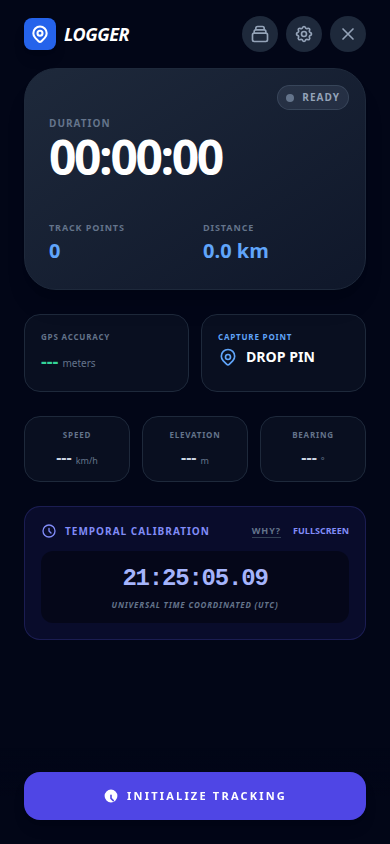
Jade GT ships its own version of this called the Mobile GPS Logger. It is free forever and lives at the same domain you load on desktop. Open jade-gt.com/app.html?mode=logger on your phone, hit Start, put it in your pocket. It records a GPX track locally on the phone, with a UTC clock for camera-sync, and hands the file off to the desktop app over a QR-code bridge. No account. No upload to anyone's server.
The matching step is the same in every tool. Load the GPX, point at the folder of photos, and the software walks the track looking for the closest GPS reading to each photo's capture timestamp. Scott Davenport's three-step Lightroom GPX walkthrough is the cleanest description of the timestamp-matching gesture if you have never done it. For a multi-day version with heavy clock drift and match-tolerance decisions, see matching a birding trip to a GPX track. The same gesture in Jade GT is one click after you drop the GPX file onto the Location tab.
Sync the camera clock before the first frame
Your camera clock has to match the GPS clock. If they are thirty seconds out of sync, every photo lands thirty seconds further down the trail than where you actually stood. Set both to the same time at the start of the day, or use the Mobile GPS Logger's UTC1 display to nudge the camera clock manually before the first frame.
Path 3: you tried Lightroom's Map module and got a blank screen
This one is a real problem and it isn't your fault. Adobe still ships the Map module in Lightroom Classic, and the documentation still describes the GPX load and auto-tag workflow as if it always works. In practice the module has rendered blank maps for European users since LrC 13.4, and the Google Maps API key it relies on has broken at least twice since 2023. Adobe has been clear since the LrC 7 split that Map, Slideshow, Book, and Web are not priorities.
Jade GT does the same operation in a browser tab. The map tiles come from OpenStreetMap. Nothing depends on a deprecated Google API key. The geotag is written into the EXIF block of the file on your disk, which is what Lightroom reads when you import. So even if the Map module is broken on your machine, the photos show up in Lightroom with a working pin already in place.
What the pin-drop and the Logger are not
Two edges to know before you start
- The pin-drop is one coordinate per pass. Right for a single-venue shoot. Wrong for a travelogue. If your day moved, use a GPX track.
- The Mobile GPS Logger is for next time. It records the day you are shooting. It cannot reconstruct yesterday's hike. If yesterday's photos need locations, your options are pin-drop on the closest landmark, or pull a track out of Strava, Garmin Connect, or whichever app was already running in your pocket.
Neither is a workflow killer. Both are worth knowing before you start, not after.
One quiet note on where the coordinates go
Jade GT runs entirely in your browser. The pin you drop, the GPX file you load, and the EXIF blocks Jade GT writes never leave your machine. Nothing uploads. Nothing trains an AI on your client's wedding. If a couple ever asks where their ceremony location is stored, the answer is "on your laptop, written into the file, the same place the camera writes the shutter speed."
You do not have to make a positioning argument out of it. It is just true of the tool. If a couple ever asks the bigger AI question, the longer answer for that conversation is in its own post.
FAQ
My camera has built-in GPS. Do I need any of this?
If the GPS was on, awake, and locked the entire shoot, no. In practice, mirrorless GPS pairing over Bluetooth drops the moment the phone screen sleeps, and most pros find the EXIF on half their frames says "no location" anyway. The pin-drop is the rescue path for the missing half.
Can I geotag a wedding from last summer that has no GPS data at all?
Yes. Drop the folder, open the Location tab, search the venue, apply to selected. Under a minute regardless of how many files are on the card.
Will the geotag survive when I import into Lightroom?
Yes. Jade GT writes to the EXIF GPS fields Lightroom and every other catalog tool read by default. The pin shows up in the Map module, the search filter, and the IPTC location block in Bridge.
Try it on ten photos
Pick ten frames from a recent shoot that you wish had locations. Drop them into Jade GT. Use the pin-drop if they were all taken in one place, or load a GPX if you happened to have one running. The pass takes about as long as it took to read this paragraph.
If the result is what your archive needed, the next shoot's metadata is already done.
This post is meant to start the conversation, not finish it. If your shoot does not fit the three paths above, reply or email. The next version comes from the workflows that did not fit.
-
GPS satellites transmit time in UTC regardless of your local timezone. Matching your camera to UTC (rather than to your phone's wall clock) avoids daylight-savings drift and timezone math in the track-match step. ↩
Reply to Kenny
Questions, corrections, or a workflow story of your own? Send a note. It goes straight to my inbox.